Goal notices: every goal you meet tells you so, and what comes next
When you meet a goal while practising, a short notice names the goal you met and the next one to work on. It is the app that tells you, not praise from Lu.
Every practice has goals: what your teacher wants you to do with the language in that scene. A counter in the header already kept score, but it updated silently and many students never noticed it. Now, every time you meet a goal, the app tells you so and suggests the next one.
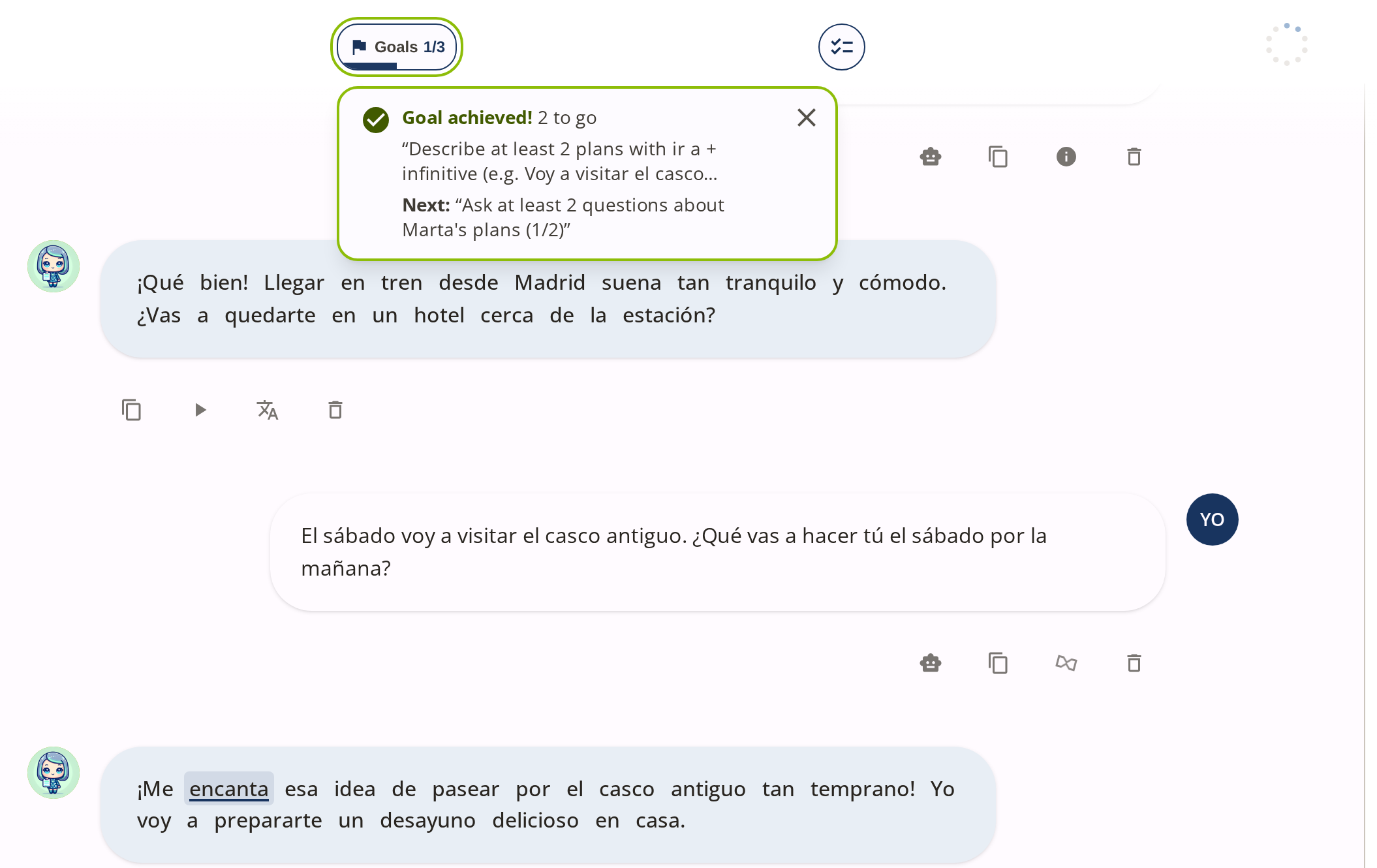 You have just described your second plan with “ir a”. The notice names the goal you met and tells you what comes next, with how far you are into it (1/2).
Where it came from
At an English academy, a student did his first practice without realising he had goals. He answered naturally, and his teacher had to stop him to remind him. It was not a one-off: at another school, a student asked Lu to tell her whether she was doing well, while the counter was already telling her.
The counter worked. Nothing invited anyone to look at it.
What changes
You know the moment you get there
The notice appears right when you meet the goal, under the counter, and names the goal you met. The first one in each conversation also makes the counter move for an instant, to draw your eye up.
You know what to do next
Under “Next”, the notice suggests the goal to work on now, in the template’s order. If you had already started one, it suggests that one, with your progress (“1/2”).
It does not interrupt the scene
It closes on its own after a few seconds, with the ✕, or when you send your next turn. Later notices in the same conversation are quieter than the first.
You understand it before you start
The first time you enter a practice, a note on the briefing explains how your goals work and where the counter will be. It appears once.
What it looks like
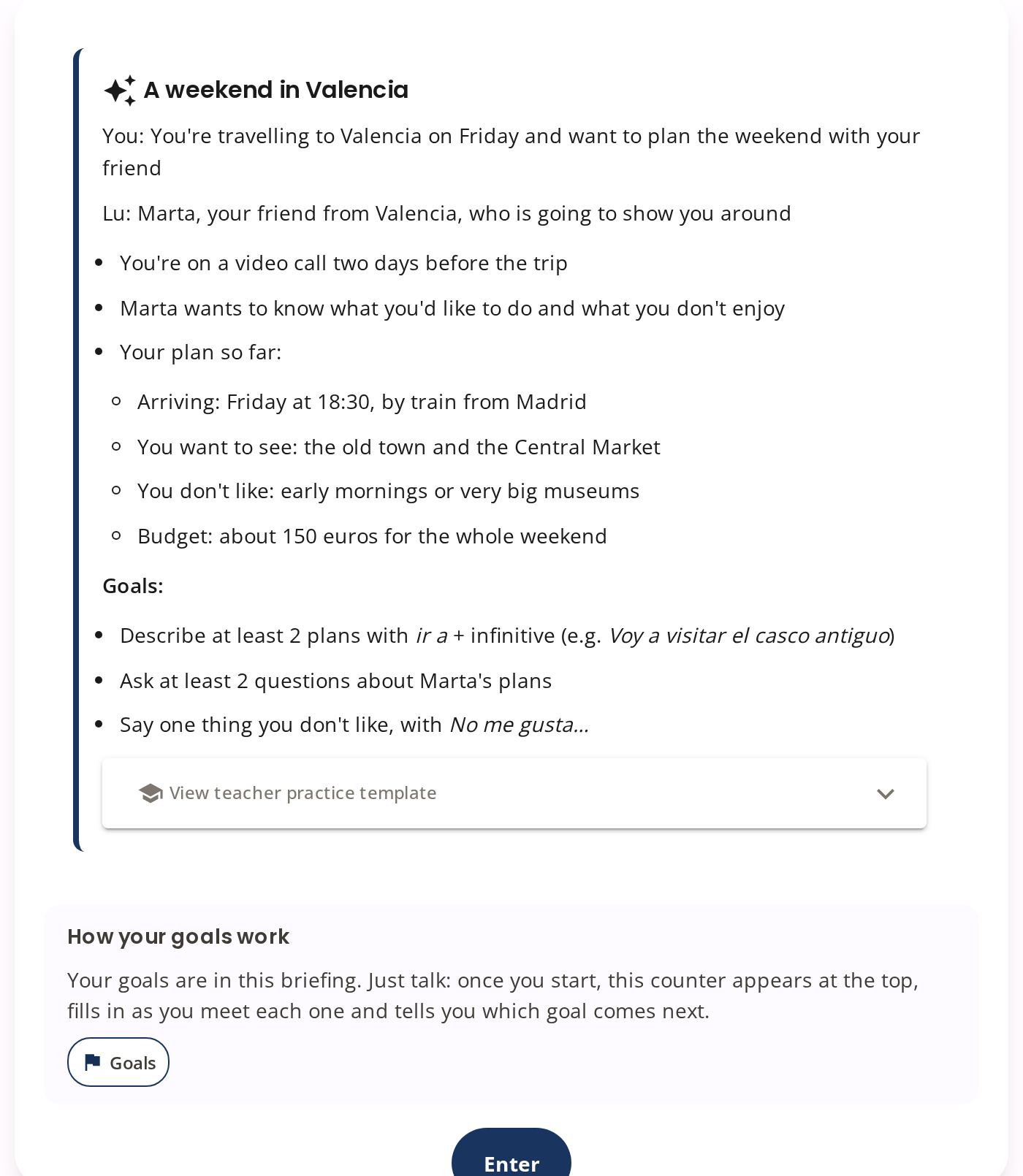 Before you enter the scene: “Your goals are in this briefing. Just talk […]”.
On a phone, the notice appears in the same place, under the counter. Once you have met them all, it reminds you that you can finish the practice whenever you like.
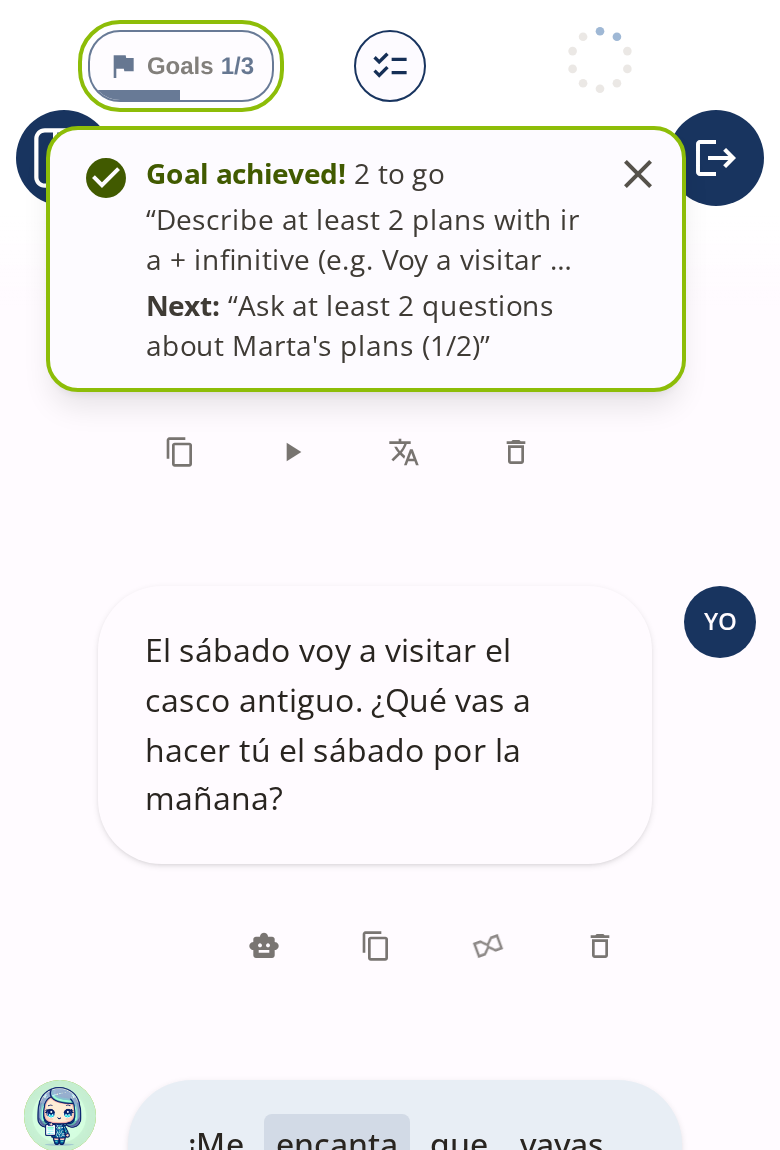 On a phone, the notice spans the screen and folds away on its own.
Also on phones, the End & see my feedback button now has a line of its own in the header. It used to share room with the counter, and on narrow screens the counter was cut off at the left edge.
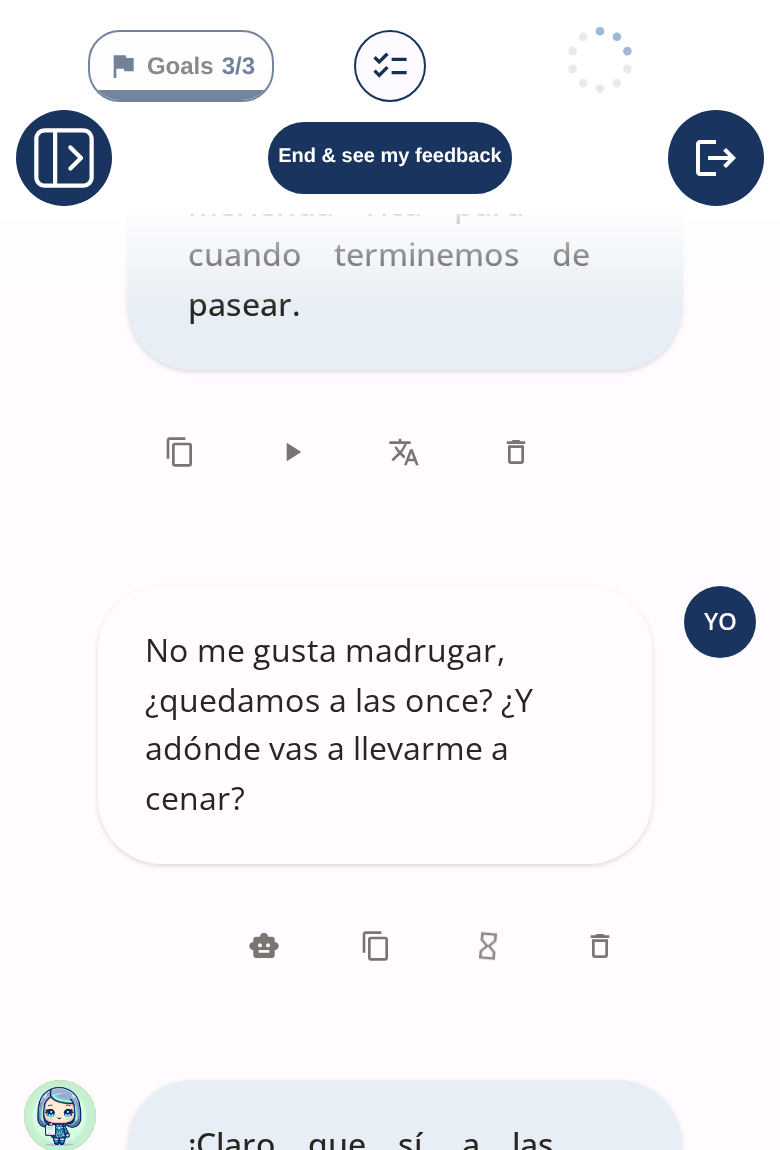 With every goal met, the counter and the finish button are both fully visible.
Why it matters
Goals are what turn a conversation into practice. Without them, Lu is someone pleasant to chat with; with them, each scene has something specific to exercise. A student who does not know they exist does not pursue them, and their teacher loses the main lever they have over the practice.
When that student asked for Lu to tell her she was doing well, the easy answer would have been for Lu to cheer her on. We chose not to. A character trained to encourage tends to validate mistakes too, exactly when the student is unsure, and that teaches errors. So Lu keeps talking as before, as a character inside the scene, and the signal comes from the app: a notice that names the goal you met, not a generic “well done!”.
The notice does not hand you the sentence either. It tells you which goal comes next, not how to say it: the language is still yours to produce. And the notice writes nothing new: it comes from the same count as the counter, so it never says anything the counter does not.
Before
- The counter updated silently.
- Many students did not know they had goals, or did not see themselves meeting them.
Now
- Each goal met brings a notice with its name and the next one.
- A note on the briefing explains it the first time.
- On a phone, the counter and the finish button are fully visible.
Try it
Open a scenario with goals and press Enter. Talk to Lu with your goals in mind: when you meet the first one, the notice appears under the Goals counter. Tap the counter to see the full list.
When you resume a conversation, notices for goals you met in an earlier session do not repeat. And they never appear during the final evaluation.