Your briefing on screen: read and speak at the same time
The scenario briefing no longer lives in a window that covers the conversation. On a computer it stays pinned on the right; on a phone it slides down under the header without covering the mic. You can check it mid-sentence.
Every scenario comes with a briefing: who you are, who you are talking to, the facts you have and the goals you are working on. Until now, re-reading it in the middle of a conversation meant opening a window that covered the scene and the mic: you could read or you could speak, not both. Now the briefing stays on screen while you talk to Lu.
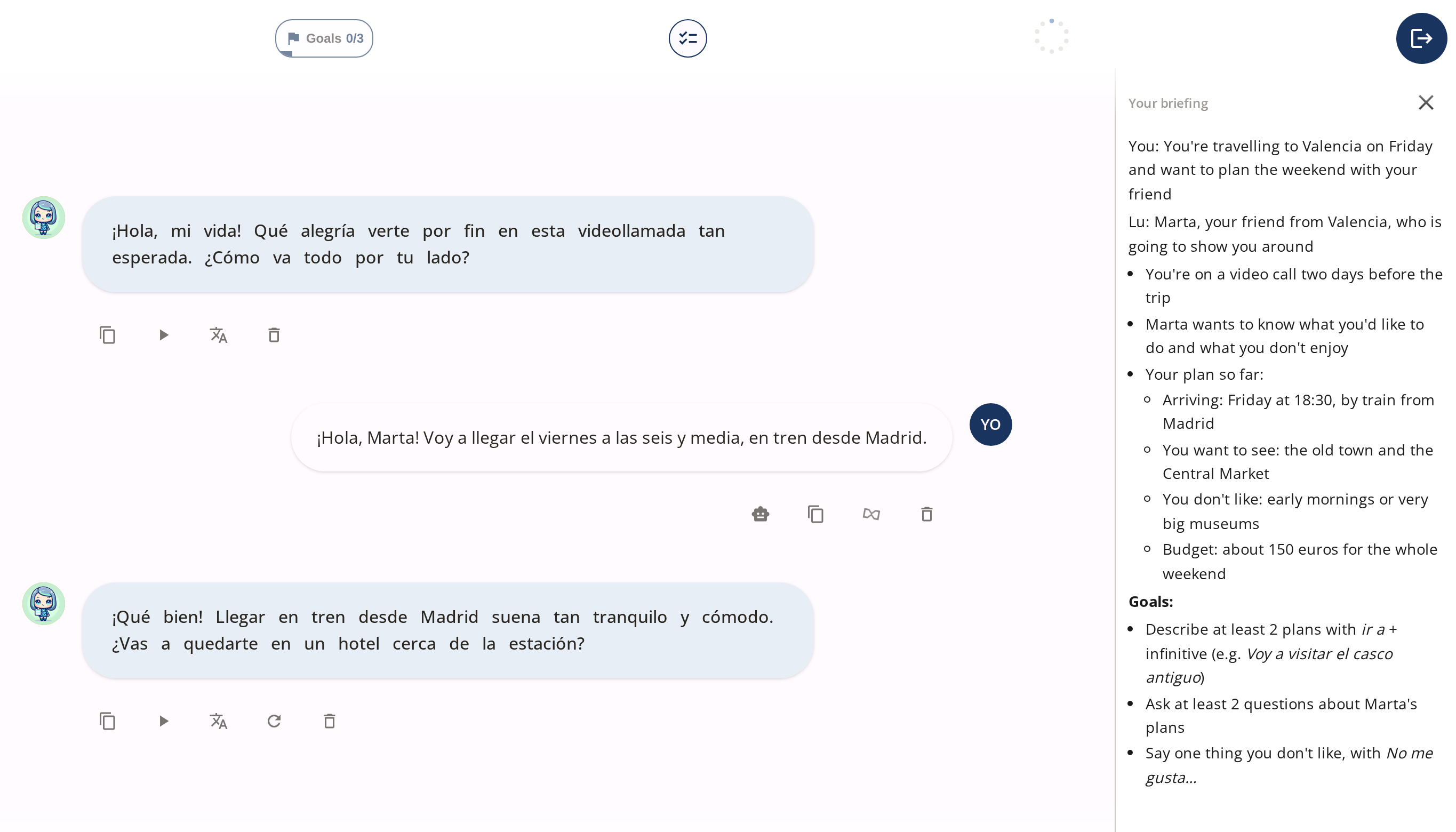 On a computer, the briefing sits on the right from the first turn: the train time and your goals, one glance away while you speak.
Where it came from
A teacher at an English academy asked for it after watching her students practise. The pattern was always the same: the briefing tells you your brother’s name and where your sister works, and a few turns later you have forgotten. Checking meant leaving the scene, reading, and coming back.
“The most necessary information stays fixed, and you can see it with just a glance.”
— A teacher at an English academy
One of her students put it more simply: he wanted to see the briefing and press the mic at the same time.
What changes
You check a detail without leaving the scene
If you can’t remember when the train gets in or what your colleague is called, you look to the side and keep talking. No window to open, no conversation to lose sight of.
The mic stays within reach
The briefing never covers the mic, on a computer or on a phone. You can start recording with it open, and it stays open while Lu replies.
You decide how much room it takes
On a computer, the ✕ removes it if you would rather have the conversation full width, and Keep on screen brings it back. Your choice is remembered, on other devices too.
You see your briefing, not Lu’s instructions
The pinned briefing shows what you read when you entered the scene, written for you. The instructions Lu plays the part from are not in it.
What it looks like
A phone has no room for a side panel, so the middle icon in the header slides the briefing down just below it. The conversation moves down a little and the mic stays where it was.
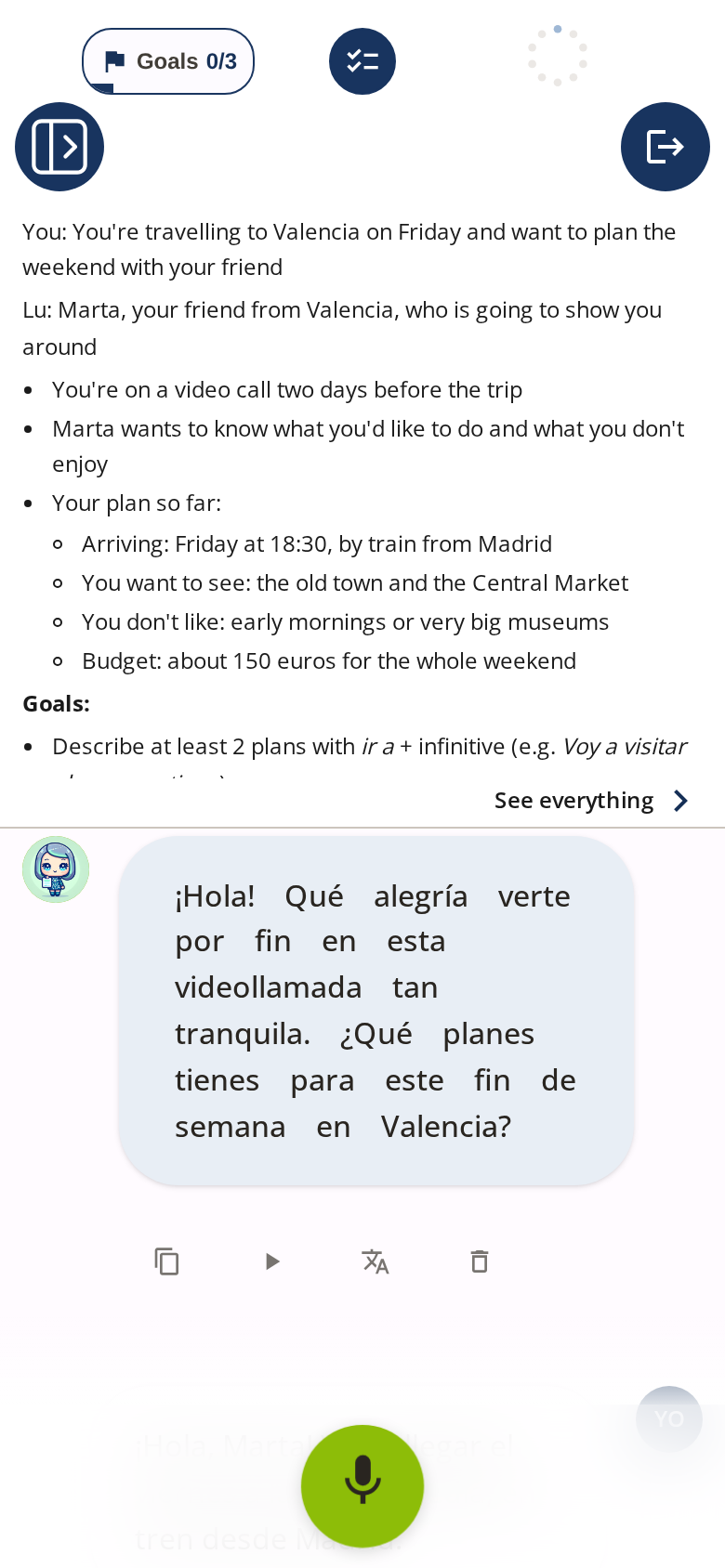 On a phone, one tap on the middle icon slides the briefing down; another folds it. “See everything” opens the full briefing.
If you removed the briefing on a computer and miss it, open it from the same icon: the window offers to pin it again.
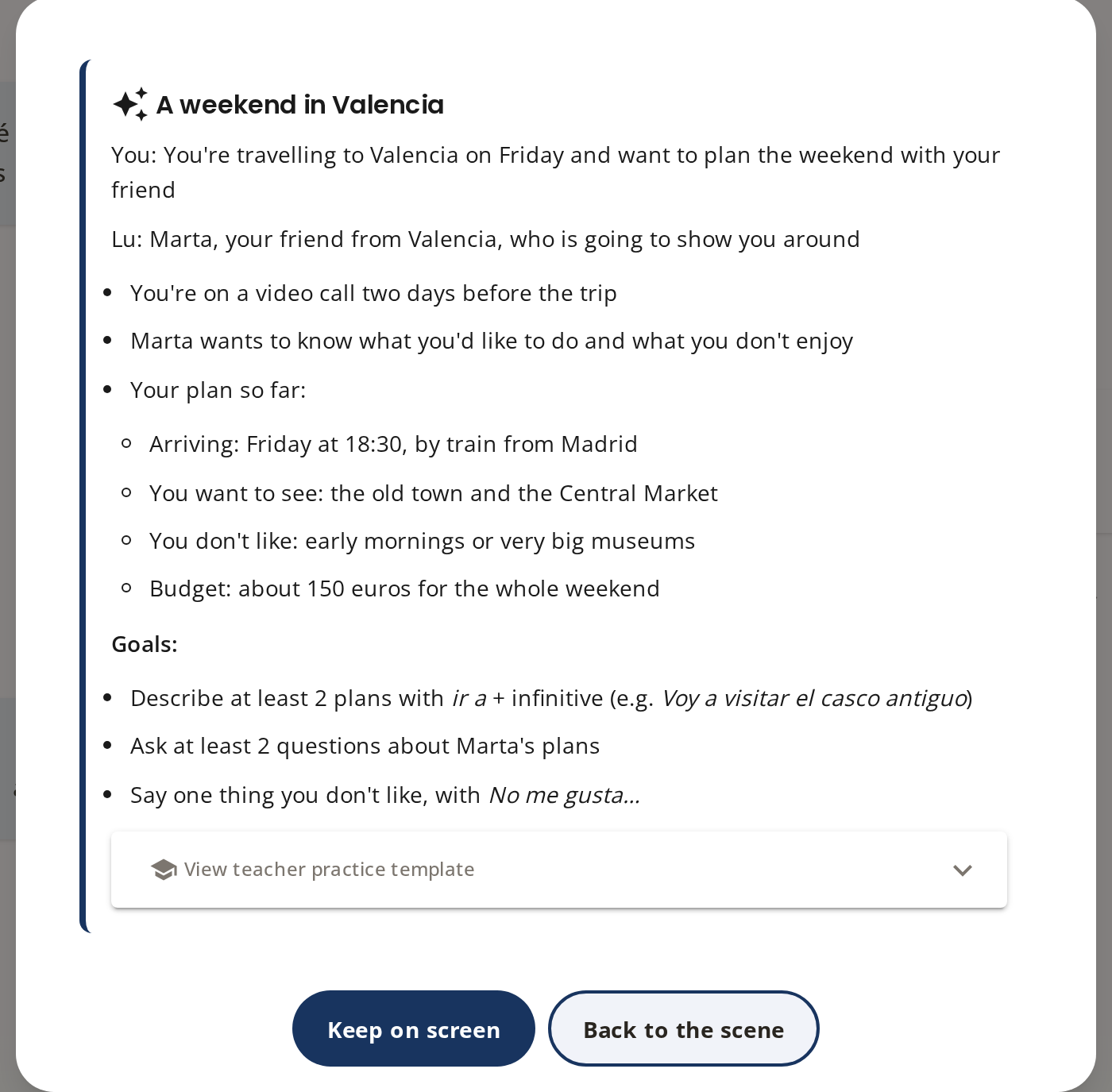 “Keep on screen” puts it back on the side, and there it stays in your next practices.
Why it matters
Speaking another language already takes almost all of your attention: finding the word, building the sentence, understanding the reply. Add five facts about the scene to hold in your head and something gives, usually the scene. The student stops playing their part and says whatever comes first, or goes blank.
Keeping the briefing in view takes that load off memory. It does not make the practice easier: the goals and what Lu expects of you stay the same. What changes is that the difficulty sits where it belongs, in the language, and not in remembering whether your friend is meeting you at the station or at the hotel.
That is why the briefing is on by default on a computer instead of hiding behind a button: what is out of sight gets checked less, even when it is needed.
Before
- The briefing opened in a window that covered the conversation and the mic.
- Checking a detail meant you had to stop speaking.
Now
- On a computer, the briefing is pinned on the right from the start.
- On a phone, it slides down under the header without covering the mic.
- You can record and listen to Lu with the briefing open.
Try it
Open any scenario and press Enter. On a computer you will see the briefing on the right; remove it with the ✕ and bring it back with Keep on screen. On a phone, tap the middle icon in the header.
What’s next
We are working out with schools whether to pin the whole briefing or only the key facts of each scene, so that it takes up even less room on a small screen.